
Be sure to jump to step 11 in order to view Alarm Configuration.
-
Login as an Administrative User.
-
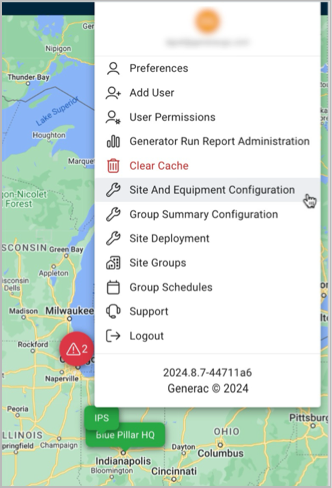
Click the Settings icon in the upper right corner of the application and select Site and Equipment Configuration from the menu.
-
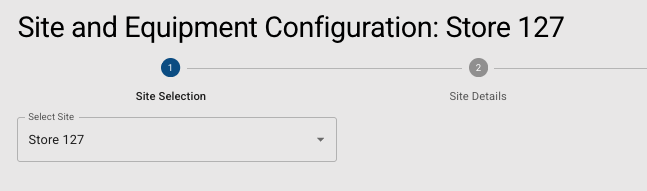
Select a Site from the drop-down menu. This will enable the next button. Click to proceed.
-
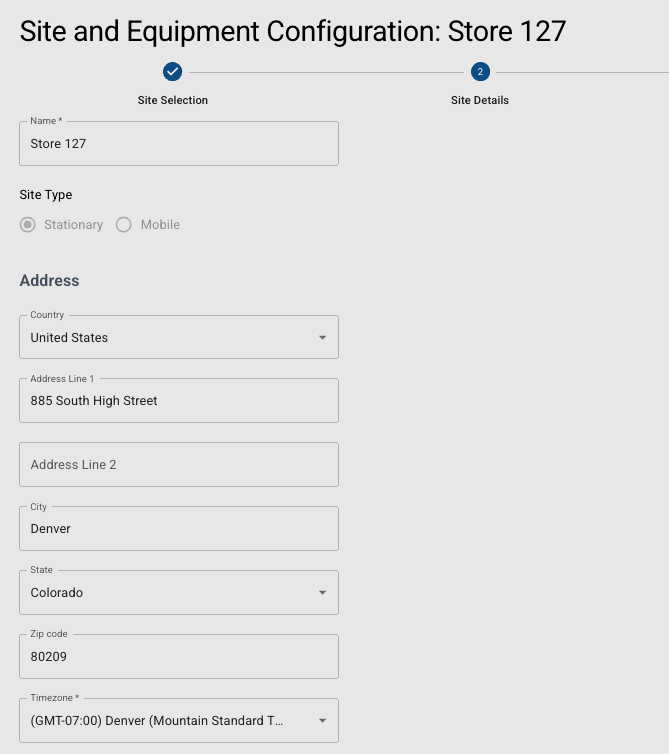
In screen 2, be sure the field entries for Name, Address (for stationary sites), and TimeZone are accurate and complete.
-
Click into the field if modifications are needed. Use the up/down arrows to adjust the Latitude/Longitude values by one degree. For incremental, fractional adjustments, type the new value over the decimal you are replacing.
Changing the name of the Site will require a Support ticket.
-
Click next when ready to proceed to the equipment types.
-
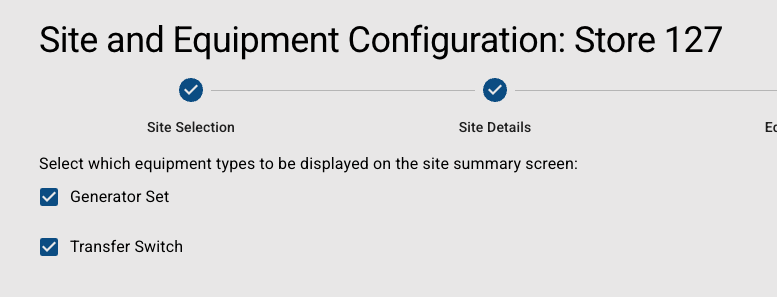
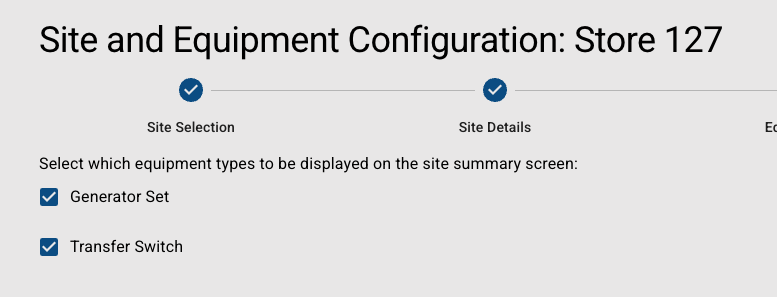
Toggle the equipment types to be displayed on the site summary screen. Click next when ready to submit these choices.
|
Other equipment types, such as for ATS, would also render and be configurable on this page if applicable at your site. |
|
-
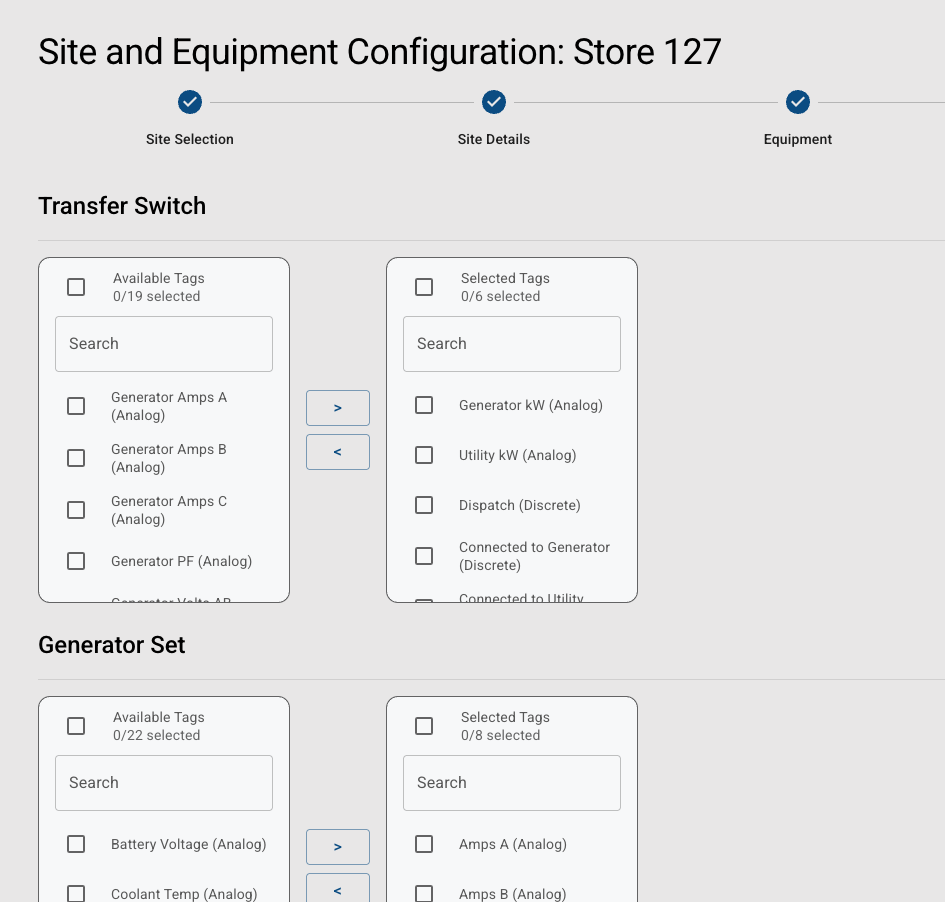
Select the available data points to be displayed by individually clicking the equipment data name in the Available section, then use the right arrow to move to Selected.
-
If all equipment data points needs to be selected/removed, use the multiple arrow button.
-
Once equipment data is selected, you can re-order the list as they appear in the Live View Summary page. Click an item and use the up and down arrows to adjust the order.
-
Click next when the list is ready to proceed to Alarm setup.
-
The Alarm page will display all the equipment data.
-
Click the Alarm toggle next to the equipment data value to enable those respective alarms.
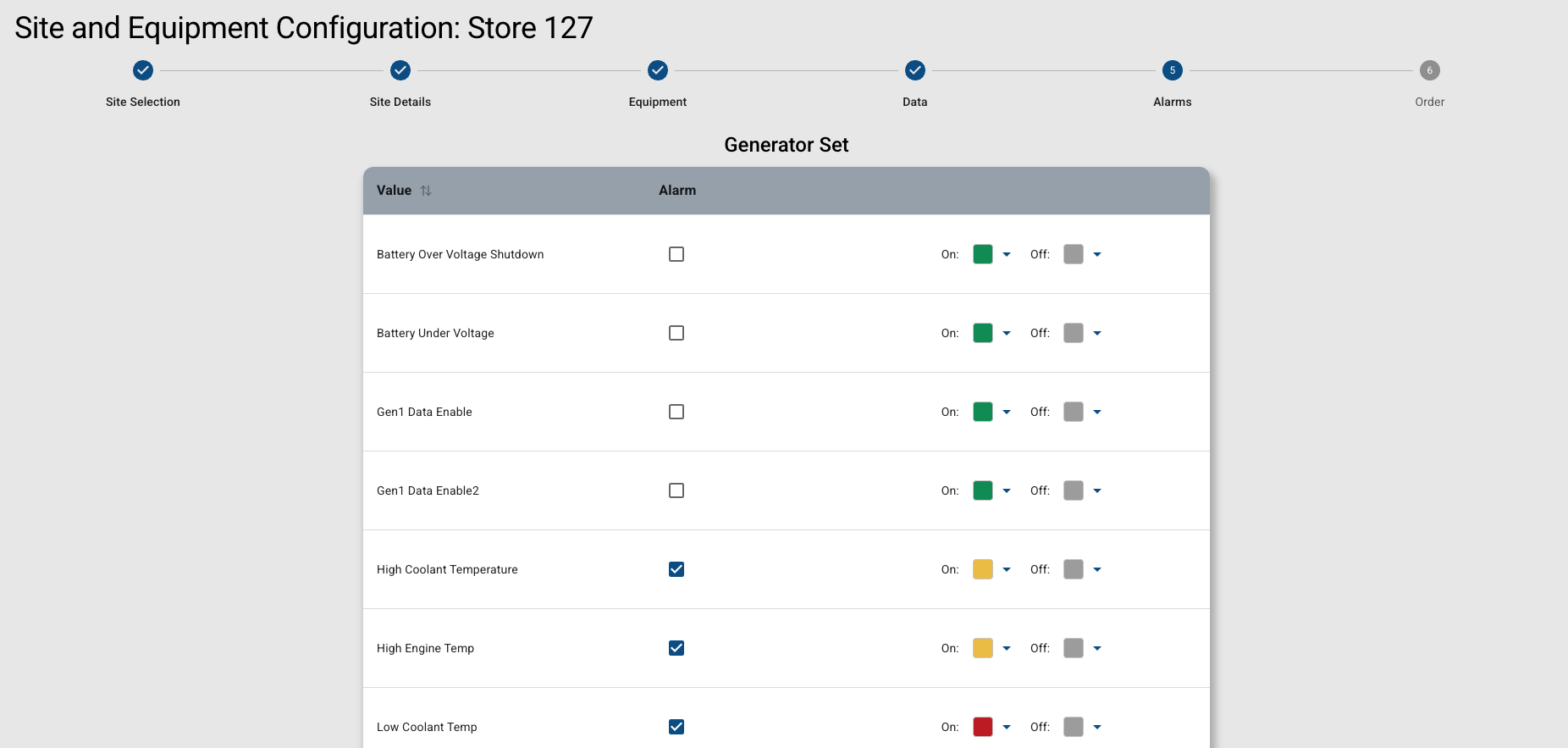
Alarm colors of Grey, Green, Yellow, and Red can be used to communicate urgency level.
-
Click the Change button.
-
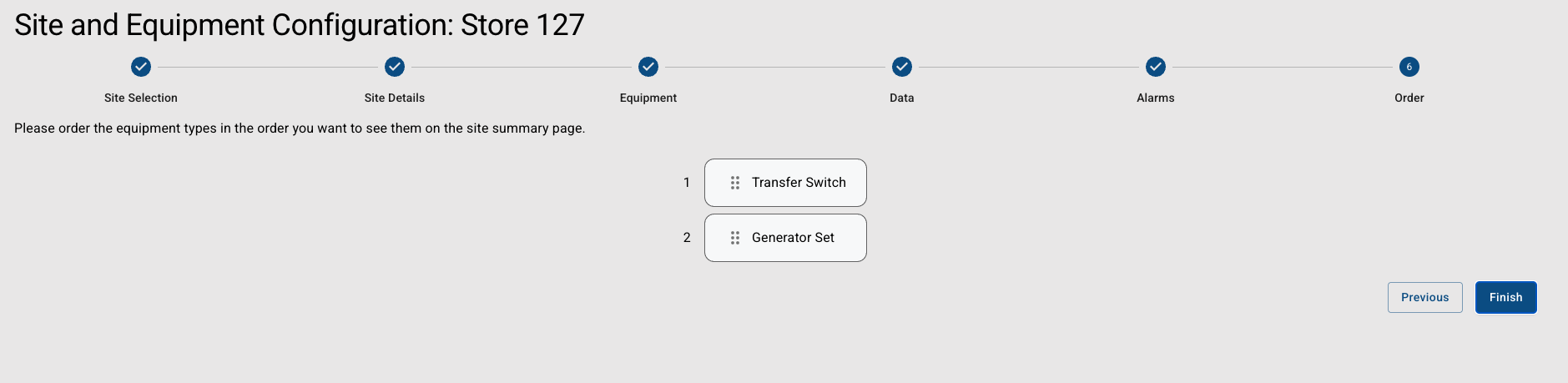
Click next to configure the Equipment display order.
-
To change the Equipment display order, click an item and use the up or down arrow to adjust.
-
Click save to complete the configuration.
At any time during configuration and before saving, you can move back to a previous step using the Previous button.